
🚀 Product Update – September 2026
Since June, we have improved Boards, New Documents and everyday administration. This update brings together the features presented in our September demo, with a focus on smoother workflows, clearer permissions and traceability.
📋 Boards
Overview of all boards in a project
A dedicated overview shows each board’s name, icon and type, with Add board alongside the existing boards. It is easier to find the right place to work as your project grows.

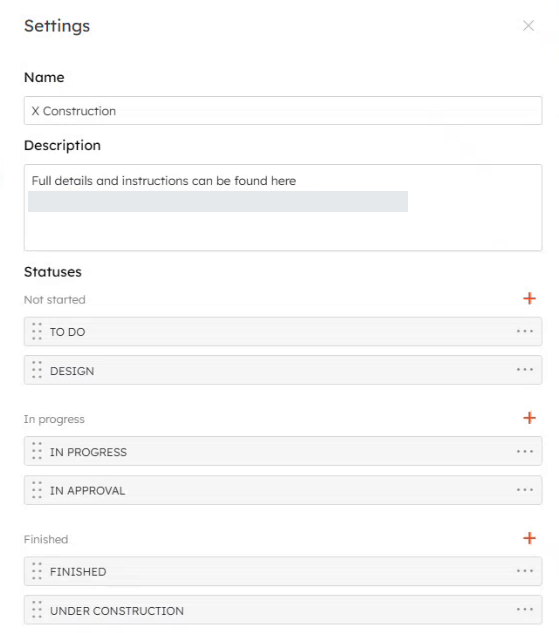
Board settings in one panel
Manage a board’s name, description and statuses in Settings. Add links to instructions in the description so people joining a project know how to use the board. Status settings have moved into the same panel.
Right click for task actions
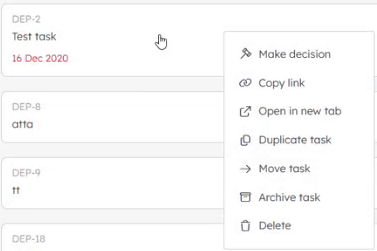
Right-click a task to reach the same actions available in its details menu, without first opening the task panel. This makes everyday task handling quicker.
Keep search and filters in board links
Board URLs preserve search and filters when you refresh, switch views or visit the archive or recycle bin. Save or share a link to return to that view. Switching to another board clears the filters.


Share feedback directly from Boards
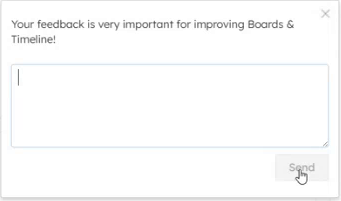
Choose Feedback in the board menu to send suggestions while you work, helping us understand what users need next.
Link tasks across boards
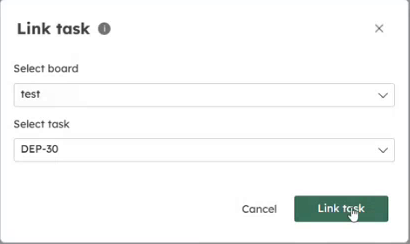
Link related tasks within the same project by choosing a board and then a task. The link appears in Attachments; links to tasks on another board open in a new tab.
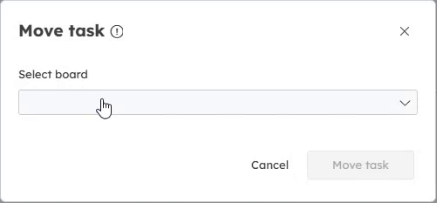
Move tasks between boards
Move a task to another board of the same type within the project, keeping its history instead of recreating it. The move is recorded in history and an email notification is sent.
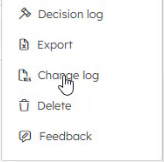
Export the board change log
Export task history across a board to Excel for review and documentation, including changes and comments. This makes it easier to follow what changed and when without opening each task.
Full permission required to make decisions
Make decision now requires Full access to the board. Users with Update access can still create and edit tasks, but cannot make decisions, giving teams more control over important approvals.
Read more here: https://knowledge.avima.app/project-boards-permissions
Single choice and multiple choice fields
Define custom fields at project level and use single-choice or multi-choice pick lists on tasks. Users can set values when creating a task and update them later, supporting structured Q&A and other project workflows (needs to be activated per workspace).
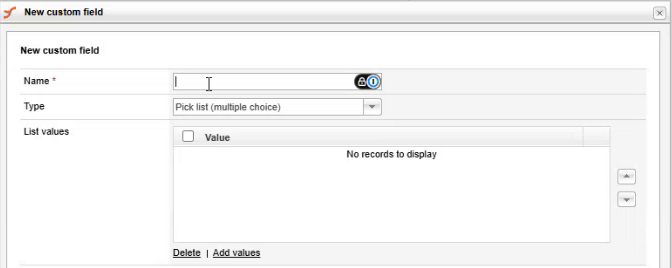
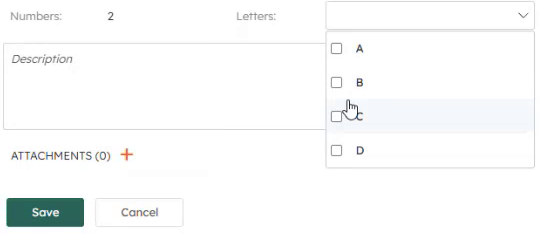
Changes to values are recorded in task history. Values are also retained when duplicating tasks, copying boards or creating projects from templates, so established structures can be reused.
Why it matters
Projects can capture the information they need with consistent choices, while retaining a record of changes and reusing standard setups.
📁 New Documents
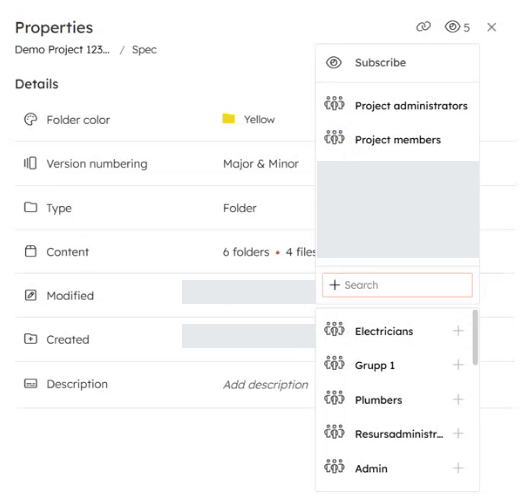
Manage folder and document subscribers
Administrators can add users and groups as subscribers to folders, documents and document sets. Search for the people who should follow updates and manage subscriptions from the panel.
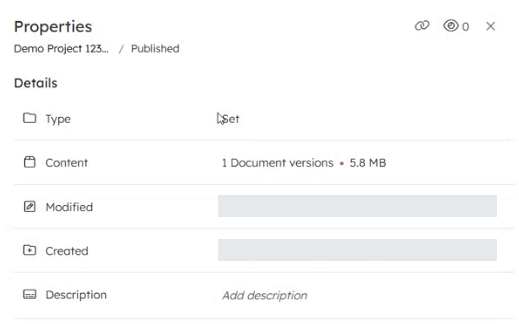
Properties for document sets
Document sets now have a Properties panel consistent with folders from its 3-dot menu. View set information, add a description and manage subscribers in the same place.
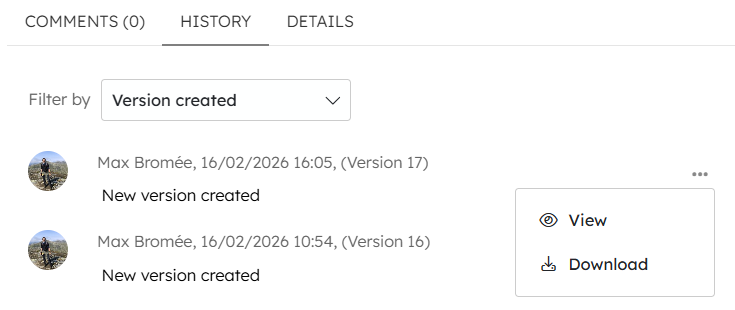
View and download earlier versions
View or download document versions from History. Clicking a version number in the document list opens History with the Version created filter applied, helping you find versions among other events.
💬 Improvements Across Modern Modules
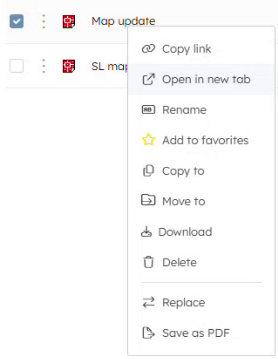
Open in a new tab
Context menus in modern modules, including Boards and New Documents, now offer Open in new tab. Review another document or task while keeping your original view in place.
View “History” tab with Read or View permission
Users with Read access in Boards or View access to documents can now open the History tab. Update permission is no longer needed just to read the change history.
Why it matters
People can review changes to information they already have access to, without being given editing rights.
⚙️ Other Improvements
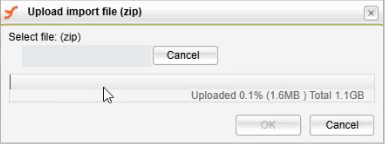
Import larger ZIP files
Document import now supports larger ZIP packages, helping with project handovers and bulk transfers that previously needed workarounds.
Help for workspace login settings
A help tooltip beside Login requirements links directly to guidance and examples. Workspace administrators can find explanations of authentication options where they configure them.

🔌 Additional Updates
More relevant Public Web notices
The Public Web termination banner is now shown only in workspaces with Public Website enabled. Protected Website is not included in this retirement, so the notice is targeted to the customers affected.
API version 2
A version 2 API interface provides a place for new features and breaking changes, supporting the continued development of enterprise integrations, partnerships and future AI-enabled workflows.